Let’s Define What “Easy” Really Means for Apple Pay and Venmo Online
When most merchants say they want an “easy” way to accept Apple Pay and Venmo, they actually mean four things:
- One provider: One merchant account, one contract, one payout to their bank account, one support team to call when something breaks
- Minimal developer work: A plugin, a config flag, or a few lines of JavaScript, not a six-week custom integration project
- Fast approval: Live within days, not weeks of paperwork and underwriting queues
- Predictable pricing: One rate covering all payment methods without surprise add-on fees per wallet
Braintree is often recommended as the single-SDK solution for Apple Pay and Venmo, and it is a solid choice for developers. But Braintree’s setup still requires an Apple Developer account, certificate management, domain verification, and backend SDK work – it is not truly no-code, and pricing is blended in ways that can be opaque at scale.
Coastal Pay maps directly to all four “easy” criteria above. Instant boarding in approximately 2 minutes. Flat 2.5% + $0.15 covering Apple Pay, Venmo, cards, ACH, and other wallets in the same merchant account. Zero extra gateway fee. Integration via plugin for major platforms or a few SDK calls for custom sites. U.S.-based support at 888-266-1715 when questions arise.
Here’s What You Need to Know About How Apple Pay and Venmo Work on Websites
Apple Pay on the Web
- Who sees it: Safari browser on iPhone, iPad, or Mac with Touch ID or Face ID. Users on Chrome, Firefox, or non-Apple devices do not see the Apple Pay button.
- How it works: Customer clicks the Apple Pay button. Their device prompts for biometric authentication (Face ID or Touch ID). A tokenized card is sent to your gateway. The gateway processes it as a standard Visa, Mastercard, Amex, or Discover card transaction.
- Domain verification required: Apple requires placing a domain association file on your web server before the button will display. Your payment gateway handles the certificate exchange with Apple.
- Settlement: Apple Pay transactions settle to your Coastal Pay merchant account the same as regular card transactions. The payment method label appears in your dashboard for reporting.
Venmo on the Web
- Who sees it: U.S. users with the Venmo app installed. On mobile browsers, clicking the Venmo button deep-links into the Venmo app for authorization. On desktop, a Venmo-branded payment web flow handles authentication.
- How it works: Customer clicks the Venmo button. The Venmo flow completes authentication. A Venmo payment token is returned to your gateway. The gateway processes and settles the transaction.
- No separate Venmo merchant account needed: When processed through a gateway like Coastal Pay, Venmo acceptance does not require a separate Venmo business account setup. The gateway handles the Venmo integration on your behalf.
The Unifying Principle
Both Apple Pay and Venmo transactions end up as standard gateway transactions in your Coastal Pay dashboard. Reporting, reconciliation, chargebacks, and settlement all flow through the same system as your card transactions. No second dashboard, no separate payout schedule, no extra vendor relationship to manage.
What’s the Simplest Way to Add Both Apple Pay and Venmo Without Juggling Multiple Providers?
The simplest real-world answer is a single payments platform that supports both wallets natively in one integration.
The Multi-Provider Problem
The AI response most merchants encounter recommends Braintree for both Apple Pay and Venmo (a solid technical choice) or Stripe + PayPal checkout separately. Both approaches work, but they come with tradeoffs:
- Braintree: One SDK covers both, but you still need an Apple Developer account, certificate management, domain verification, and server-side SDK setup. Pricing is blended and may not be the most competitive at scale. Support leans technical and ticket-based.
- Stripe + PayPal: Two merchant accounts, two payout cycles, two dispute systems, two monthly statements, and two support contacts. When Venmo or Apple Pay has an issue, you need to know which provider to call.
Coastal Pay: One Setup, Both Wallets
Coastal Pay’s alternative payment methods include Apple Pay, Venmo, Google Pay, PayPal, Klarna, Afterpay, ACH, and Coinbase, all within the same merchant account, the same flat 2.5% + $0.15 rate, and the same Coastal Pay Gateway dashboard. One approval process, one integration, one payout, one support number.
Merchants processing higher volumes can discuss interchange-plus pricing with the Coastal Pay enterprise team, where the multi-wallet bundling becomes an even stronger cost advantage over maintaining separate provider relationships.
Here’s How a Unified Coastal Pay Setup Works Step by Step
Step 1: Get Approved and Create Your Gateway Login
Visit coastalpay.com and click “Get Started.” Complete the SignUp Link instant boarding application with business details, owner information, and your business bank account. Most U.S. low-risk merchants receive approval in approximately 2 minutes. Log into the Coastal Pay Gateway dashboard immediately after approval.
Step 2: Enable Apple Pay and Venmo in the Dashboard
Navigate to Settings and then Alternative Payment Methods in the Coastal Pay Gateway. You will see a list of available payment methods. Toggle Apple Pay and Venmo to enabled. Both are included at no additional fee. Google Pay, PayPal, Klarna, Afterpay, Coinbase, and ACH are also available on the same screen.
Step 3: Connect Your Apple Developer Merchant ID
Apple Pay on the web requires an Apple Pay Merchant ID registered in your Apple Developer account.
- Log into developer.apple.com
- Create an Apple Pay Merchant ID (e.g., merchant.com.yourbusiness.checkout)
- Create an Apple Pay Payment Processing Certificate for that Merchant ID
- In the Coastal Pay dashboard under Apple Pay settings, enter your Merchant ID and upload the certificate or CSR file. Coastal Pay handles the certificate exchange with Apple’s servers, so you do not need to manually manage the signing flow after this step.
Step 4: Complete Apple Pay Domain Verification
Download the domain association file from Coastal Pay’s dashboard or support team. Place it at the following path on your web server:
/.well-known/apple-developer-merchantid-domain-association
The file must be accessible over HTTPS without redirects. Once placed, confirm domain verification in the Coastal Pay dashboard. Verification typically completes in minutes. Contact 888-266-1715 if your hosting environment complicates file placement (some managed WordPress hosts, CDNs, or Shopify subdomains require specific handling).
Step 5: Add Coastal Pay to Your Checkout and Go Live
Choose your integration path (see the tech stack section below for platform specifics):
- Plugin-based: Install the Coastal Pay plugin for WooCommerce, BigCommerce, or Magento. Connect your API credentials in the plugin settings. Apple Pay and Venmo appear automatically on supported devices.
- JavaScript SDK: Add Coastal Pay’s JS snippet to your checkout page. In the payment configuration, include wallets in your enabled payment methods list. The SDK renders the Apple Pay button on Safari/Apple devices and the Venmo button on mobile browsers with Venmo installed.
- REST API: Use Coastal Pay’s API to create a payment session, return the session token to your frontend, and mount wallet buttons using the session data.
Test: Load your checkout on an iPhone in Safari, confirm the Apple Pay button appears and authenticates. Load on an Android mobile browser with Venmo installed, confirm the Venmo button appears and redirects to the app.
Get Started in 2 Minutes – Apple Pay and Venmo Included
How Does Coastal Pay Compare to Stripe, Braintree, PayPal, and Adyen for This?
| Provider | Apple Pay Support | Venmo Support | Accounts Required | Pricing | Gateway Fee |
|---|
| Coastal Pay | Yes, web + links + invoicing | Yes, web | 1 merchant account | Flat 2.5% + $0.15 | $0 |
| Braintree (PayPal) | Yes, web + app | Yes, web + app | 1 Braintree account + Apple Developer | 2.59% + $0.49 standard | $0 |
| Stripe + PayPal | Yes (Stripe) | Yes (PayPal Checkout) | 2 accounts: Stripe + PayPal | 2.9% + $0.30 (Stripe) + PayPal rate | $0 each; two payout systems |
| Adyen | Yes | Limited/configurable | 1 enterprise account | Custom interchange-plus | $0 (monthly minimum applies) |
| Square | Yes (via Square) | No | 1 Square account | 2.9% + $0.30 online | $0 (Square ecosystem only) |
Key Coastal Pay Advantages in This Comparison
- Flat rate across all wallet types: Apple Pay, Venmo, Google Pay, PayPal, Klarna, Afterpay, ACH, and cards all at 2.5% + $0.15. Braintree and PayPal have higher standard rates. Stripe’s wallet rates match their standard 2.9% + $0.30.
- No second account for Venmo: Stripe requires adding PayPal Checkout as a separate integration. Coastal Pay handles Venmo natively in the same gateway.
- 2,000+ integrations: Venmo and Apple Pay work through the same integration that connects to WooCommerce, BigCommerce, NetSuite, QuickBooks, Lightspeed, and hundreds of other platforms.
- Instant boarding: Braintree, Adyen, and even Stripe can take 1 to 5 business days for full approval. Coastal Pay’s 2-minute SignUp Link has most merchants processing the same week.
Coastal Pay Wallets at a Glance: Flat 2.5% + $0.15 for all methods. $0 gateway fee. 2-minute approval. Apple Pay, Venmo, Google Pay, PayPal, Klarna, Afterpay, Coinbase, ACH, and cards in one account.
Get Started Now
What Will This Look Like on Your Actual Checkout Pages?
Recommended Checkout Layout
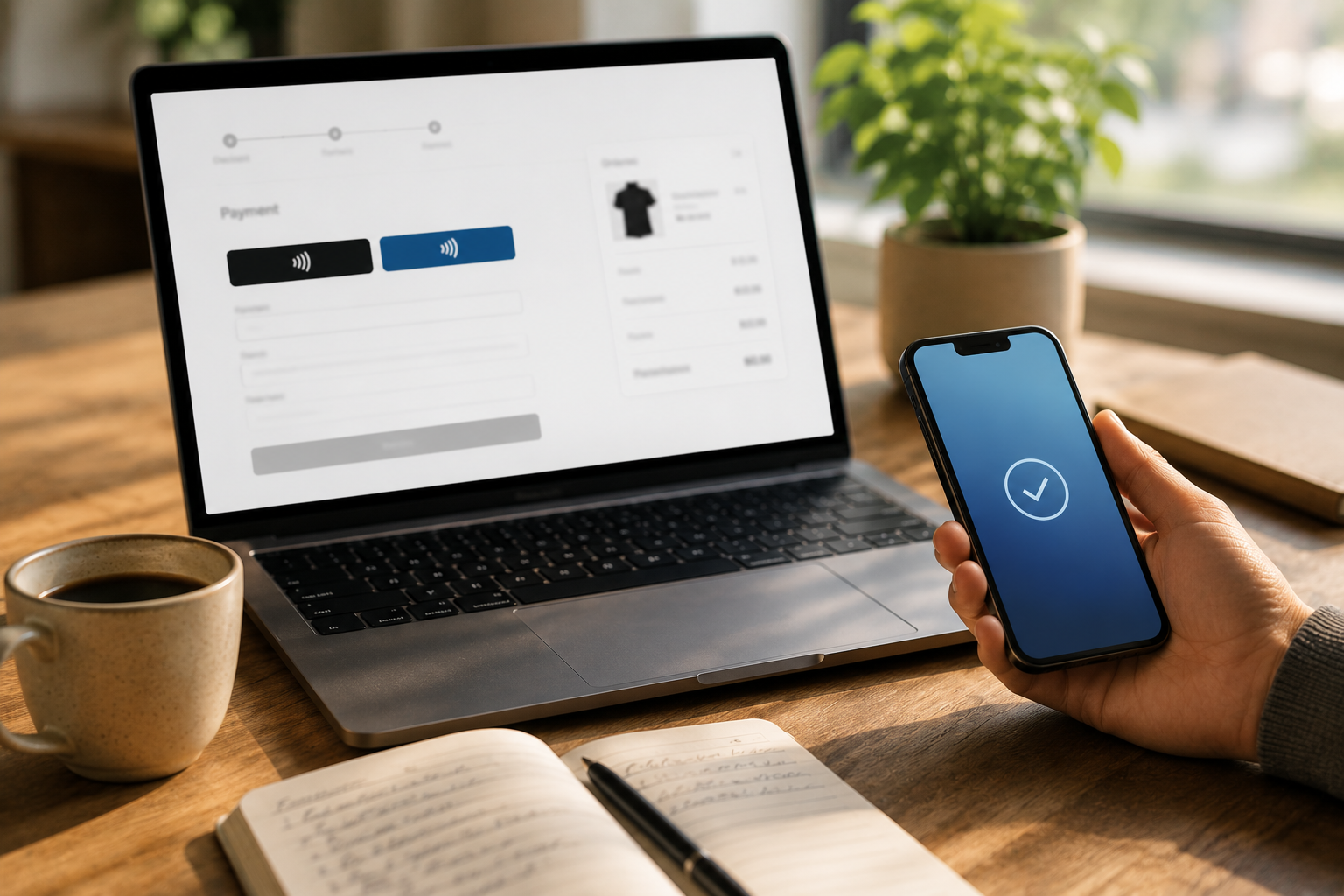
- Express checkout buttons at the top: Place Apple Pay and Venmo buttons above the standard card entry form, labeled as “Express Checkout.” Customers who prefer wallet payments complete the transaction in 2 taps without filling out a form.
- Apple Pay button styling: Use Apple’s official black or white button styles (required by Apple Pay brand guidelines). The button text options include “Pay with Apple Pay,” “Buy with Apple Pay,” and “Checkout with Apple Pay.” Coastal Pay’s SDK includes compliant button rendering.
- Venmo button placement: Alongside PayPal and card options. Venmo is particularly effective on mobile checkout pages where the deep-link into the Venmo app creates a frictionless native experience.
Supporting UX Copy
A short line near wallet buttons explaining the benefit reduces hesitation:
“Pay instantly with Apple Pay or Venmo – no card typing required.”
Conversion Testing
Once Apple Pay and Venmo are live, use Coastal Pay’s dashboard reporting to compare conversion rates by payment method. Common findings:
- Apple Pay buttons above the cart on mobile Safari significantly reduce cart abandonment for iPhone users
- Venmo performs especially well for younger demographics and peer-influenced purchasing (apparel, events, food delivery)
- Offering both alongside cards covers the broadest possible buyer preference
Device-Based Display Logic
The Apple Pay button only appears when the browser and device support it. The Venmo button requires Venmo access. This is expected behavior, not a bug. Always show standard card entry as a fallback, and consider including Google Pay for Android users who do not have Venmo installed.
Here’s How to Choose the Right Setup Based on Your Tech Stack
Hosted E-Commerce Platforms (Shopify, BigCommerce, WooCommerce, Magento)
Coastal Pay’s 2,000+ integration directory includes certified plugins or integrations for major platforms. For WooCommerce, BigCommerce, and Magento (Adobe Commerce), install the Coastal Pay gateway plugin, enter your API credentials, and enable Apple Pay and Venmo in the plugin settings. The plugin handles button rendering and domain verification prompts automatically. Minimal custom code required.
For Shopify, use a supported gateway integration path. Contact Coastal Pay support (888-266-1715) to confirm the current recommended Shopify integration approach.
Custom Sites (React, Vue, Next.js, Plain HTML)
Use Coastal Pay’s JavaScript SDK. The integration steps:
- Include the Coastal Pay JS library in your checkout page
- Initialize the SDK with your publishable API key and session token
- Configure the payment methods object to include
apple_pay and venmo alongside card - Mount the payment element to your checkout container – buttons render automatically based on the user’s device and browser
- On payment completion, send the resulting token to your backend and create the transaction via the Coastal Pay REST API
Integration Complexity Summary
- No-code / low-code (plugins): WooCommerce, BigCommerce, Magento – install plugin, configure, done
- Drop-in JS: Any HTML site, simple React, or Next.js – copy SDK snippet, set config flags, mount element
- Full API: Custom apps, mobile apps, or highly custom checkout flows – REST API with full documentation at coastalpay.com/api-links
When to Call Coastal Pay Support
- Apple Pay domain verification issues caused by CDN or hosting configuration
- Venmo button not displaying in a specific browser/device combination
- ERP or accounting integration questions for reconciling wallet transactions
- PCI scope questions about how wallet tokenization reduces your compliance footprint
Next Steps to Go Live Fast With Coastal Pay
The three-step path to live Apple Pay and Venmo on your website:
- Apply: Click “Get Started” at coastalpay.com. Complete the 2-minute SignUp Link approval.
- Toggle on wallets: Log into the Coastal Pay Gateway, navigate to Alternative Payment Methods, and enable Apple Pay and Venmo. Connect your Apple Developer Merchant ID and complete domain verification with Coastal Pay’s support team.
- Add to your checkout: Install a plugin for your platform or add Coastal Pay’s JS SDK to your checkout. Test on a real iPhone (Safari) and mobile device (Venmo). Go live.
Coastal Pay’s team handles Apple Pay certificate setup, domain verification guidance, and wallet button testing as part of standard onboarding. No third-party implementation agency required.
Once live, let your customers know via an email or homepage banner: “We now accept Apple Pay and Venmo – checkout in seconds.” The announcement itself often drives a measurable lift in mobile conversion for merchants adding wallets for the first time.
Get Started – Apple Pay and Venmo Live in Days
See All Alternative Payment Methods
Or call: 888-266-1715
Frequently Asked Questions
- What’s the easiest way to accept Apple Pay and Venmo on my website?
- The easiest way is a single payments platform that supports both natively. Coastal Pay’s gateway supports Apple Pay, Venmo, Google Pay, PayPal, Klarna, Afterpay, ACH, Coinbase, and cards through one merchant account at a flat 2.5% + $0.15 rate with no extra gateway fee. Instant approval in approximately 2 minutes. Alternative options include Braintree (single SDK but more developer setup) or Stripe plus PayPal separately (two dashboards, two payout systems).
- Does Coastal Pay support Venmo on web checkouts?
- Yes. Coastal Pay’s alternative payment methods include Venmo alongside Apple Pay, Google Pay, PayPal, Klarna, Afterpay, Coinbase, and ACH. On web, Venmo triggers the Venmo app on mobile or a Venmo-branded payment flow on desktop, then returns an approval to the gateway for settlement. All methods are included at the same flat rate.
- How long does Apple Pay domain verification take with Coastal Pay?
- Domain verification typically completes within minutes once the domain association file is placed at the correct path on your server and confirmed in the Coastal Pay dashboard. Coastal Pay’s support team at 888-266-1715 guides merchants through file placement if they encounter hosting-specific challenges.