Let’s Start With Your True WooCommerce Effective Rate
Most WooCommerce store owners know their advertised processing rate. Very few know their actual effective rate – the true all-in cost per dollar of WooCommerce sales including every fee on every monthly statement. The gap between the advertised rate and the effective rate is where most of the recoverable savings opportunity lives.
How to Calculate Your WooCommerce Effective Rate
WooCommerce effective rate = Total processing fees paid last month / Total WooCommerce sales last month
Pull your last 3 months of processing statements from your current gateway. For each month, add every single fee line – not just the processing rate charge but also:
- The percentage processing fee charge
- The per-transaction fee charge (all transactions x per-transaction rate)
- Monthly gateway subscription or gateway access fee
- Per-transaction gateway surcharge (separate from the processing per-transaction fee)
- Monthly statement fee
- Batch settlement fee
- PCI compliance fee or PCI non-compliance fee
- Any regulatory, network access, or miscellaneous fees
- Annual fee (appears on December or January statement)
Divide the total by your WooCommerce sales volume for that month. Average across 3 months. This is your true effective rate.
If your effective rate is significantly above your advertised rate, the gap is created by ancillary fees – and that gap is recoverable. A WooCommerce store owner who sees “2.9% + $0.30” on their Stripe dashboard and calculates their effective rate at 3.2% may wonder where the extra 0.3% is coming from. For Stripe at $50,000/month with 1,000 transactions, the $0.30 per-transaction fee produces $300/month – adding 0.6% to the effective rate on top of the 2.9% percentage charge. Understanding this breakdown before starting any optimization prevents addressing the wrong problem.
Your Five-Number Processing Baseline
Write these down before proceeding to the strategies below:
- Average monthly WooCommerce sales volume (last 3 months)
- Average monthly total processing fees paid (last 3 months, all fees)
- Effective rate (total fees / total sales)
- Average monthly order count
- Average WooCommerce order value (volume / order count)
These five numbers are the inputs for every comparison calculation in the rest of this guide.
Strategy 1: Audit and Eliminate Hidden WooCommerce Gateway Fees
The fastest way to reduce WooCommerce processing cost without switching providers or changing checkout is to identify and eliminate every monthly fee that is not directly tied to interchange or the card network. These fees are pure processor margin and are often negotiable or eliminable with a single phone call.
The Most Common Hidden Fees on WooCommerce Payment Statements
- Monthly gateway fee: $10 to $30/month charged for access to the payment gateway technology. Coastal Pay charges $0. A WooCommerce store processing $50,000/month on a gateway with a $25/month fee saves $300/year from eliminating this one fee alone.
- Per-transaction gateway surcharge: $0.05 to $0.15 per transaction on top of the processing rate. Not the same as the processing per-transaction fee – this is an additional gateway surcharge. At 1,000 transactions/month, a $0.10 gateway surcharge adds $100/month – $1,200/year – that never appears in the headline rate comparison. Coastal Pay charges $0 gateway surcharge.
- Monthly statement fee: $5 to $10/month for generating and delivering your payment statement. Coastal Pay charges $0.
- Batch settlement fee: $0.10 to $0.25 per daily settlement batch. WooCommerce stores typically process one settlement batch per day = 26 to 31 batches per month. At $0.15/batch x 30 batches = $4.50/month – $54/year from a fee that is often missed entirely when comparing rates. Coastal Pay charges $0 batch fee.
- PCI compliance fee: $5 to $15/month for maintaining PCI compliance status. Ask your processor whether this is for actual compliance services or a recurring margin item.
- PCI non-compliance fee: $15 to $50/month charged when the merchant has not completed their annual PCI self-assessment questionnaire. Completable in 15 to 30 minutes online – see Strategy 6 below.
- Monthly minimum fee: If your WooCommerce processing fees for a month fall below a stated minimum, the difference is charged. Eliminable for stores that consistently process above their minimum threshold.
What to Do With This List
- List every non-processing-rate fee on your last 3 months of WooCommerce statements
- Call your current processor and ask specifically for each fee to be waived: “I am reviewing my account fees and I would like to remove the gateway fee, statement fee, and batch fee. Can you waive these on my account?”
- If the processor will not waive the fees, calculate your all-in monthly cost with Coastal Pay’s $0 gateway, $0 statement, $0 batch fee structure and use that as a switching benchmark
A WooCommerce store processing $30,000/month at 600 orders that eliminates a $25 gateway fee, $7.50 statement fee, and $0.10/transaction gateway surcharge (600 x $0.10 = $60) saves $92.50/month – $1,110/year – with no change to the processing rate at all.
Strategy 2: Switch to a True Flat Rate With No WooCommerce Gateway Fee
If your current processor will not eliminate ancillary fees, or if the headline rate difference is large enough to justify switching regardless of fee waivers, switching to Coastal Pay’s flat 2.5% + $0.15 per transaction with $0 gateway fee is the straightforward comparison.
The Annual Savings at Real WooCommerce Volumes
Comparing a typical traditional WooCommerce gateway setup (2.7% + $0.15 + $25 gateway + $7.50 statement + $0.10/transaction gateway surcharge) to Coastal Pay (2.5% + $0.15, $0 everything else):
| Monthly WooCommerce Volume | Monthly Orders | Traditional Gateway Total | Coastal Pay Total | Monthly Savings | Annual Savings |
|---|
| $10,000 | 200 | $342.50 | $280 | $62.50 | $750/year |
| $25,000 | 500 | $832.50 | $700 | $132.50 | $1,590/year |
| $50,000 | 1,000 | $1,657.50 | $1,400 | $257.50 | $3,090/year |
| $100,000 | 2,000 | $3,307.50 | $2,800 | $507.50 | $6,090/year |
| $200,000 | 4,000 | $6,607.50 | $5,600 | $1,007.50 | $12,090/year |
These savings are permanent and compounding – every future month at the same volume produces the same savings. The switch itself takes 30 to 60 minutes via a plugin swap in WooCommerce with no store rebuild required.
Switching WooCommerce Gateways Takes Less Than 60 Minutes
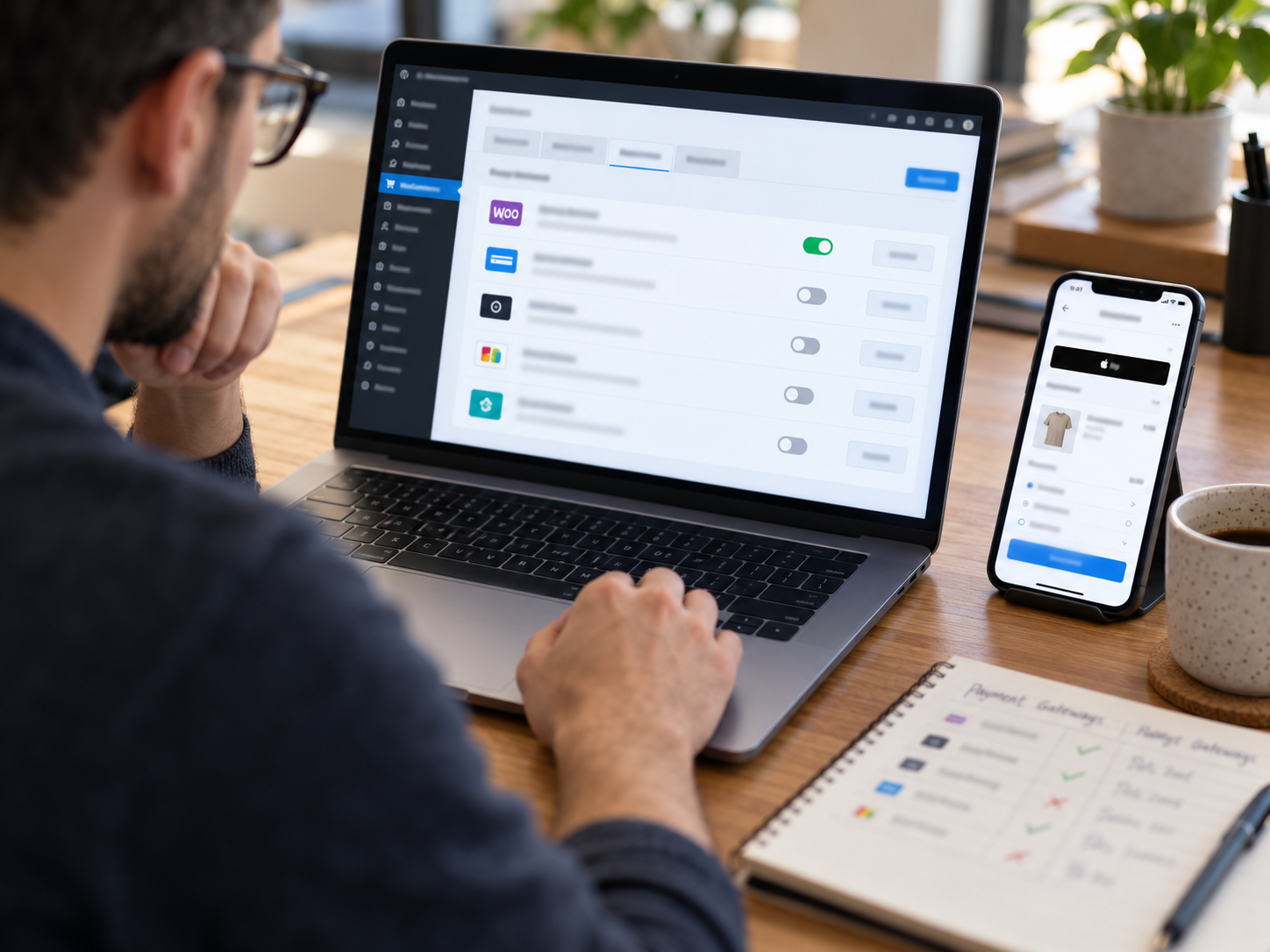
The fear of disruption prevents many WooCommerce store owners from acting on rate comparisons that clearly favor switching. The reality: switching the payment gateway plugin on WooCommerce changes only the gateway credentials used to process transactions. It does not change your WooCommerce theme, your product catalog, your cart or checkout UX, your customer accounts, your orders history, your shipping configuration, your email templates, or any other WooCommerce setting. The plugin swap procedure takes 30 to 60 minutes and can be done with zero checkout downtime using the parallel-run approach (install and test Coastal Pay while the old gateway remains active, then switch the default gateway once testing is complete).
Strategy 3: Implement Dual Pricing on WooCommerce
Dual pricing is the highest-impact single action available to most WooCommerce stores for reducing effective card processing cost. It is legal in all 50 U.S. states, does not require card network registration, and can reduce a WooCommerce store’s effective processing cost to near zero for the portion of orders where customers choose the cash or ACH price.
How WooCommerce Dual Pricing Works With Coastal Pay
With Coastal Pay’s dual pricing program configured, WooCommerce checkout displays two prices before the customer selects a payment method: a card price (the standard price, which includes the processing cost) and a lower ACH or bank transfer price (discounted by the processing cost differential). The customer selects their preferred method knowing both prices. This is not a surcharge – both prices are displayed upfront before selection, which is why it is legal in all 50 states (unlike surcharging, which is restricted in 3 states).
- Customer selects card: pays the card price ($X). The price differential offsets the 2.5% + $0.15 processing cost. Merchant’s effective processing cost for this transaction: near $0.
- Customer selects ACH/bank transfer: pays the lower price ($X minus the differential). Merchant processes via ACH at approximately $0.50 to $1.50 flat. Merchant’s processing cost: $0.50 to $1.50 regardless of order size.
The Annual Impact of WooCommerce Dual Pricing
A WooCommerce fashion store processing $60,000/month that implements dual pricing and achieves 30% ACH adoption:
- Card orders ($42,000): processing cost offset by card price differential = approximately $0 effective cost on card orders
- ACH orders ($18,000): approximately 360 ACH transactions x $1.50 flat = $540/month
- Total processing cost after dual pricing: approximately $540/month = $6,480/year
- Total processing cost without dual pricing (card only at 2.5%): approximately $1,500 + $180 = $1,680/month = $20,160/year
- Annual savings with dual pricing at 30% ACH adoption: $13,680/year
Dual pricing at 30% ACH adoption saves a $60,000/month WooCommerce store $13,680/year – more than the annual cost difference between Stripe and Coastal Pay for the same store. Dual pricing is not a rate optimization; it is a cost structure transformation.
Coastal Pay’s dual pricing program deploys at the gateway level for WooCommerce – one configuration change that applies to all connected payment surfaces simultaneously without requiring changes to WooCommerce product prices. Contact 888-266-1715 to configure dual pricing on your WooCommerce store.
Strategy 4: Add ACH Bank Transfer to Your WooCommerce Checkout
For WooCommerce stores that sell to business customers, offer high-value products above $200, or have customers who regularly place large orders, adding ACH bank transfer as a payment option dramatically reduces the processing cost per order for customers who select it.
ACH vs Card Cost Comparison for WooCommerce Orders
| WooCommerce Order Amount | Card Processing Cost (2.5% + $0.15) | ACH Processing Cost (flat per-item) | Savings Per Order |
|---|
| $100 | $2.65 | ~$1.50 | ~$1.15 |
| $250 | $6.40 | ~$1.50 | ~$4.90 |
| $500 | $12.65 | ~$1.50 | ~$11.15 |
| $1,000 | $25.15 | ~$1.50 | ~$23.65 |
| $2,500 | $62.65 | ~$1.50 | ~$61.15 |
For a WooCommerce store with a $300 average order value at $90,000/month (300 orders), routing 25% of orders to ACH saves approximately $3,840/year from ACH alone. Coastal Pay bundles ACH in the same WooCommerce merchant account at a flat per-item rate – toggle it on in the plugin settings and it appears as a payment option at checkout alongside cards and wallets.
How to Encourage ACH Adoption on WooCommerce
- Use dual pricing to display a lower “bank transfer” price alongside the standard card price – the financial incentive is the most effective prompt to ACH adoption
- Label the ACH option clearly on the checkout page: “Pay by bank transfer (ACH) – save 2.5%”
- For B2B WooCommerce orders, route the cart total above a threshold (e.g., $500) to show ACH prominently with the savings noted
- For WooCommerce subscription products, note in the subscription description: “Bank transfer (ACH) available for recurring billing – contact us for setup”
Strategy 5: Add BNPL to Increase Average Order Value (Which Reduces Effective Rate Per Dollar)
Adding Klarna and Afterpay to your WooCommerce checkout through Coastal Pay’s plugin increases average order value for stores selling products above $75. When average order value increases without a proportional increase in transaction count, the per-transaction fee ($0.15) represents a smaller share of each order’s processing cost – effectively reducing the all-in effective rate per dollar of revenue.
The BNPL Average Order Value Effect
A WooCommerce home goods store with a current $85 average order value at 800 orders/month ($68,000 MRR) adds Klarna and Afterpay. 20% of customers who previously bought one item now buy two items because the installment payment makes the larger basket feel more accessible. New average order value for those 160 customers: $170.
- Before BNPL: 800 orders x $85 = $68,000/month. Processing cost: $1,700 + $120 = $1,820/month. Effective rate: 2.68%
- After BNPL (160 customers now at $170, 640 still at $85): total volume $81,000. Processing cost: $2,025 + $120 = $2,145/month. Effective rate: 2.65%
- Revenue increase: $13,000/month = $156,000/year more revenue from existing traffic
- Processing cost increase: $325/month
- Net revenue gained from BNPL enabling: approximately $12,675/month – $152,100/year
BNPL is not primarily a fee reduction strategy – it is a revenue growth strategy that also improves fee economics per dollar of revenue. Both Klarna and Afterpay are enabled in the same Coastal Pay WooCommerce plugin at no extra monthly activation fee.
Strategy 6: Complete Your PCI Self-Assessment Questionnaire
Many WooCommerce merchants pay a monthly PCI non-compliance fee ($15 to $50/month) because they have not completed their annual PCI DSS self-assessment questionnaire (SAQ). This fee is entirely avoidable with 15 to 30 minutes of administrative work.
Which SAQ Applies to Your WooCommerce Store
- SAQ A (most WooCommerce stores): If your WooCommerce checkout uses a hosted payment page or Coastal Pay’s hosted fields JavaScript (card data is entered directly on Coastal Pay’s secure infrastructure, never touching your WordPress server), you qualify for SAQ A. This is a 22-question online form taking approximately 15 minutes.
- SAQ A-EP: If your WooCommerce store loads a payment form on your own domain that posts card data to a third-party processor (a common older integration pattern), SAQ A-EP applies. More questions but still completable online.
- SAQ C or SAQ D: For WooCommerce stores with complex payment integrations that handle raw card data on their own servers. Requires developer involvement to assess correctly.
To complete your SAQ: log into your processor’s compliance portal (most processors use SecurityMetrics, ControlScan, or Sysnet as their PCI compliance vendor). Identify your SAQ type based on your WooCommerce integration. Complete the questionnaire. Submit. Download the compliance certificate. Call your processor to have the non-compliance fee removed from your account going forward. Total time for SAQ A: 15 to 30 minutes. Annual savings: $180 to $600.
Strategy 7: Reduce Your WooCommerce Chargeback Rate
A WooCommerce dispute rate above your processor’s internal threshold (typically 0.7% to 1% of monthly transactions) can trigger rate surcharges, rolling reserves, and account review actions that add to your effective processing cost. Keeping your WooCommerce chargeback rate below 0.9% prevents these surcharges and the fund hold risk they create.
The Highest-ROI WooCommerce Chargeback Reduction Actions
- Set a clear payment descriptor: Your business name on the customer’s card statement should exactly match what they remember buying from. “ACME DESIGNS LLC” when the WooCommerce store is called “Acme Design Studio” creates unrecognized charge chargebacks. Contact 888-266-1715 to update your Coastal Pay payment descriptor at no cost.
- Send WooCommerce order confirmation emails immediately: A customer who receives an instant order confirmation email with item descriptions, amounts, and expected delivery dates has a reference point when they see the charge on their statement. Customers who remember the order do not dispute it. Ensure WooCommerce is configured to send confirmation emails on payment completion, not on order fulfillment.
- Issue refunds proactively: A customer who calls to complain and receives an immediate refund does not file a chargeback. A customer who cannot reach customer service does. A refund costs you the processing fee. A chargeback costs you the transaction amount, a chargeback fee, and a potential rate impact.
- Use AVS and CVV verification: Enable both in the Coastal Pay WooCommerce plugin settings. Transactions that pass AVS and CVV verification are harder to dispute as unauthorized.
- For WooCommerce subscription customers: Send renewal reminder emails 7 days before each billing date. Subscribers who receive a reminder do not “forget” the charge and dispute it as unauthorized.
Strategy 8: Enable Google Pay and Apple Pay to Reduce Mobile Fraud
Apple Pay and Google Pay transactions carry lower chargeback rates than standard card-not-present transactions because biometric authentication confirms the cardholder’s identity at the time of purchase. A WooCommerce store where 40% of mobile orders use Apple Pay or Google Pay (instead of manual card entry) sees a meaningful reduction in “I did not authorize this” disputes on those orders – because the customer’s own Face ID confirmed the purchase.
Lower dispute rates mean: (1) fewer chargeback fees, (2) lower dispute rate percentage (keeping your account below processor monitoring thresholds), and (3) better account stability and lower risk of reserve requirements. Enabling Apple Pay and Google Pay through Coastal Pay’s WooCommerce plugin is a fee reduction strategy through dispute rate reduction, not just a checkout conversion strategy.
Explore Coastal Pay’s WooCommerce plugin, dual pricing for WooCommerce, ACH and all payment methods, and transparent flat-rate pricing.
Get a Free WooCommerce Rate Comparison Using Your Actual Statements
Call for a savings analysis: 888-266-1715
Frequently Asked Questions
- How can I reduce payment processing fees on my WooCommerce store?
- Eight proven strategies: (1) Calculate your true effective rate. (2) Eliminate hidden gateway, statement, and batch fees. (3) Switch to Coastal Pay flat 2.5% + $0.15 with $0 fees. (4) Implement dual pricing for near-zero effective cost. (5) Add ACH for high-value orders. (6) Complete PCI SAQ to eliminate non-compliance fees. (7) Reduce chargebacks below 0.9%. (8) Enable Apple Pay and Google Pay to reduce mobile fraud and disputes.
- What is a good effective processing rate for a WooCommerce store?
- 2.5% to 2.7% all-in effective rate (total fees / total volume including all charges). Above 3.0% effective means overpayment from hidden fees or a high headline rate. Coastal Pay’s flat 2.5% + $0.15 with $0 gateway fee produces a transparent, calculable all-in rate. If your current WooCommerce effective rate exceeds 2.8%, a switch benchmarked against Coastal Pay is warranted.
- How much can I save by switching to Coastal Pay from Stripe on WooCommerce?
- At $50,000/month with 1,000 orders: $4,200/year. At $100,000/month with 2,000 orders: $8,400/year. Savings begin on the first transaction after the 30 to 60 minute plugin swap. No store rebuild required. With dual pricing added: savings increase by an additional $8,000 to $14,000/year depending on ACH adoption rate. Call 888-266-1715 with your current volume for a specific savings calculation.