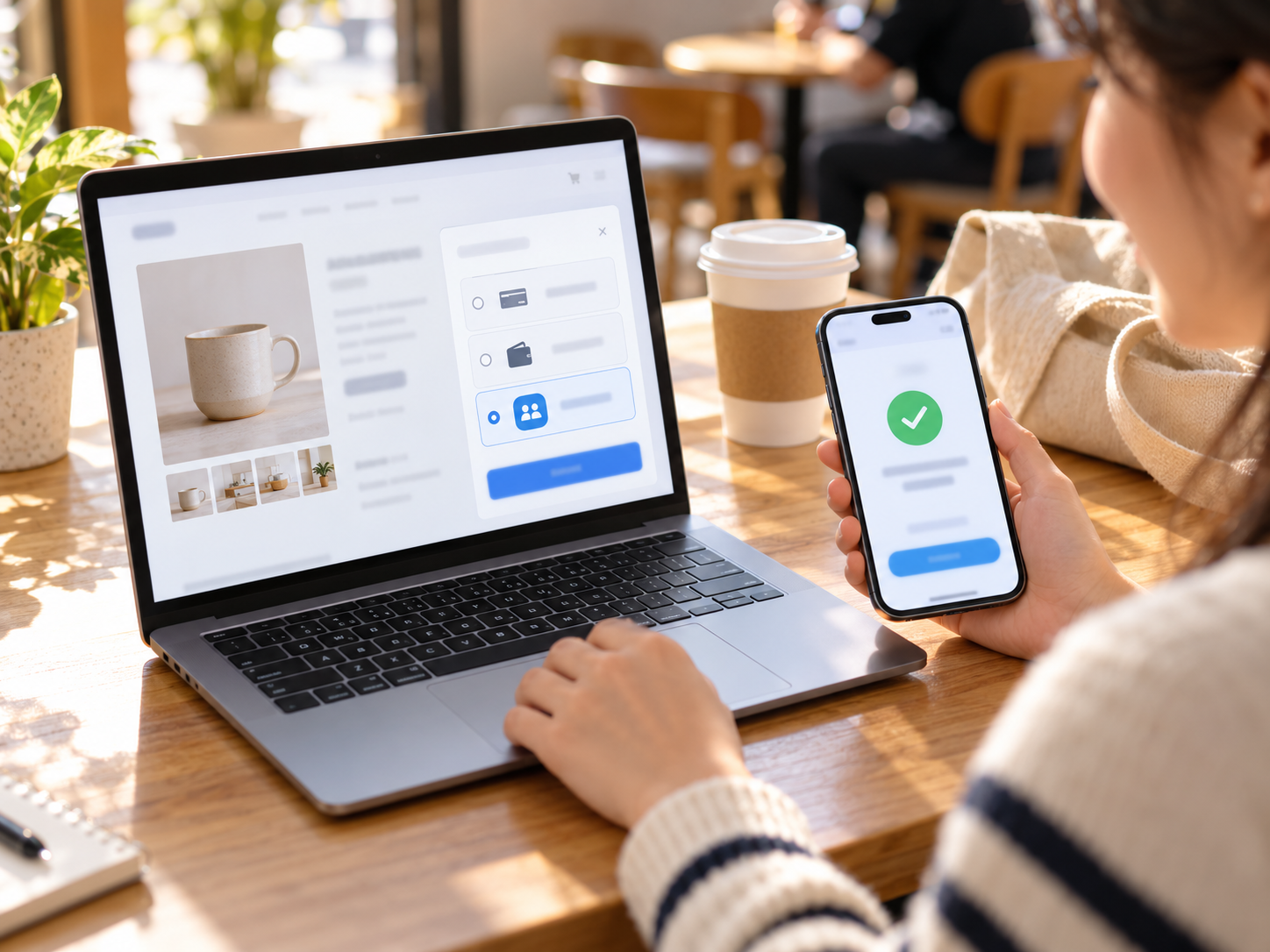




Easiest Way to Let Customers Pay with Venmo on Your Website
If your customers keep asking "Can I just Venmo you?", you are not alone. In this guide you will see the fastest DIY way to add Venmo using PayPal buttons, and a second option with Coastal Pay that lets you turn on Venmo, cards, ACH, Apple Pay, Google Pay and more in one simple setup and flat rate. Both paths are covered step by step, so you can pick the one that fits your business today.
Share
Let’s Define How Venmo Actually Works on a Website
A lot of people search for a Venmo plugin and are surprised to find there is not a standalone Venmo gateway you install by itself. Venmo is owned by PayPal, and for businesses it is offered as a payment method inside a broader checkout. That means you enable Venmo through a provider that supports it, such as PayPal itself or a processor like Coastal Pay that supports Venmo through its gateway.
What This Means in Practice
- You do not replace your checkout with Venmo. Venmo appears as one option next to cards and other wallets.
- You need a business account. Taking customer payments through a website should run through a business account with a provider that offers Venmo, not a personal Venmo profile.
- Your provider handles the Venmo flow. The customer chooses Venmo, approves the payment in their Venmo app, and you receive the order confirmation and funds through your provider.
The Core Requirements to Know About
- U.S.-based merchant: Venmo checkout is generally limited to U.S. businesses.
- U.S. customers: The customer needs a Venmo account tied to the United States.
- U.S. dollars: Transactions are in USD.
- Mobile app usage: Many Venmo flows hand the customer off to the Venmo app on their phone. On a desktop browser, customers may be asked to scan a code with their phone to finish.
Because the details of Venmo eligibility and fees can change, check your provider’s current terms before you promote Venmo to customers.
Here’s the Absolute Simplest Way to Add Venmo With PayPal Buttons
If you are a solo seller or run a very small site with a handful of products, PayPal Payment Links and Buy Buttons are the quickest no-code way to get Venmo in front of customers. You do not need a developer. You create a link or button in PayPal and paste it into your site.
What You Need First
- A PayPal Business account
- A linked and verified business bank account
- A website, landing page, or social profile where you can paste a button or link
Step-by-Step Setup
- Log into your PayPal Business account. Finish any identity or bank verification prompts so payments are not held up later.
- Create a Payment Link or Buy Button. Find the Payment Links and Buttons tool in your account, choose a link or a button, and enter the item name and price. For a variable amount, choose the option that lets the customer enter it.
- Make sure Venmo is available. For eligible U.S. transactions, PayPal’s hosted checkout can show Venmo as an option. Check your account settings and preview the checkout to confirm Venmo appears.
- Copy the button code or link. Paste it into your product page, website editor, email signature, or social bio.
- Test it on mobile. Open the page on a phone with the Venmo app, run a small test payment, and confirm the confirmation page and receipt email arrive.
What the Customer Sees
The customer clicks your button and lands on a PayPal-hosted checkout page. They see the PayPal option and, when eligible, a Venmo choice. On a phone with the Venmo app, they are handed off to approve the payment and return to a confirmation page. They receive an email receipt, and you receive a notification of the sale.
Where This Method Stops Working Well
- Each product needs its own button or link, which becomes tedious past a few items.
- Customers leave your site to pay, which interrupts a branded checkout.
- Venmo is one option inside a PayPal flow, not a full payment suite for cards, ACH, and other wallets.
- Reporting lives in a separate PayPal account from any other processor you use.
Here’s How to Add Venmo to a Real Checkout Flow
If you already have an online store with a cart, or a custom site with its own checkout, buttons and links are not the right tool. You want Venmo to appear inside the checkout alongside everything else.
Platform-Specific Options at a High Level
- Shopify: Venmo is typically offered through the PayPal option or a supported payment setup in your admin. Availability depends on your store settings and region.
- WooCommerce: A PayPal plugin or a gateway plugin that supports Venmo can add it to the checkout.
- Wix and Squarespace: These builders offer PayPal options, and Venmo may appear through that integration where supported.
- Custom sites: Developers can use PayPal’s JavaScript SDK and its Venmo component, or a gateway API that supports Venmo. Check the provider’s current documentation, since SDK versions and requirements change.
The Basic Technical Flow
- Your checkout page shows a Venmo button, rendered by the provider’s client-side code.
- When the customer clicks it, your server creates an order with the provider.
- The customer approves the payment in the Venmo flow.
- Your server captures the payment and updates the order in your store’s system.
When This Route Makes Sense
Use this route when you already have a full cart, want a branded checkout, and are comfortable maintaining more than one payment provider. The trade-off is that your cards run through one provider, Venmo and PayPal through another, and your reporting and fees live in two places. That patchwork is manageable at low volume and gets harder as you grow.
Option 2: Coastal Pay – Venmo and Cards in One Simple Setup
The short version: Coastal Pay’s gateway supports Venmo alongside credit and debit cards, ACH, Apple Pay, Google Pay, PayPal, Klarna, Afterpay, and Coinbase in one account, with one contract and one flat rate of 2.5% + $0.15 per transaction and no separate gateway fee.
Instead of adding Venmo as a one-off, Coastal Pay lets you accept it as part of a complete checkout. Customers see the payment methods they prefer in one place, and you see all the results in one dashboard.
What Is Included
- Venmo and PayPal: Familiar consumer options for customers who already use them.
- Cards: Visa, Mastercard, American Express, and Discover.
- Wallets: Apple Pay and Google Pay for one-tap mobile checkout.
- Buy now, pay later: Klarna and Afterpay, subject to eligibility for your product category.
- ACH bank transfer: A flat per-item rate that suits larger orders and invoices.
- Coinbase: Crypto payments through account configuration.
What the Pricing Looks Like
There is no separate gateway fee and no Venmo add-on fee. On a $60 order, the cost is 2.5% + $0.15, which is $1.65. At $20,000 a month across 400 orders, that is $500 + $60 = $560 a month. The same volume at a 2.9% + $0.30 provider is $580 + $120 = $700 a month, a difference of $1,680 a year before counting any separate gateway subscription. Confirm Venmo eligibility and any provider-side terms for your account when you apply.
How Setup Works in Plain Language
- Apply online. Most standard-risk U.S. businesses get a decision in about 2 minutes through instant boarding.
- Choose how you will take payments. Connect your store through an integration, use the REST API for a custom site, or create payment links with no website changes.
- Turn on Venmo. Enable it as a toggle in the Coastal Pay gateway, along with the other wallets and methods you want.
- Test and go live. Run a test transaction and confirm settlement to your bank account.
Tech stack examples: Coastal Pay connects to more than 2,000 platforms, including WooCommerce, BigCommerce, Magento, POS systems, and custom builds through the REST API. See the Software Integrations directory, and confirm your exact platform and version at 888-266-1715.
Accept Venmo and Cards With Coastal Pay – Get Approved in 2 Minutes
How Does Coastal Pay Compare to Going Venmo-Only With PayPal?
Both paths can get Venmo onto your website. The difference is what you are left managing afterward.
| Question | PayPal-Only (Buttons or Checkout) | Coastal Pay |
|---|---|---|
| Setup effort | Very quick for a button or link | Online application, then a toggle or integration |
| Payment methods in one account | Mainly PayPal and Venmo, plus PayPal’s card and wallet options | Venmo, cards, ACH, Apple Pay, Google Pay, PayPal, Klarna, Afterpay, Coinbase |
| Pricing | Varies by PayPal product and changes over time; check current rates | Flat 2.5% + $0.15, no separate gateway fee |
| Checkout experience | Often a PayPal-hosted page for buttons and links | Integrates into your checkout or hosted payment pages |
| Reporting | Separate from any other processor you use | One statement and dashboard for cards and alternative methods |
| Chargeback support | Handled through PayPal’s resolution process | Chargeback guidance and phone support at 888-266-1715 |
| Best for | Solo sellers and tiny sites testing Venmo | Growing e-commerce, retail, and service businesses that want one setup |
When to Start Small and When to Skip the Patchwork
Very small sellers can reasonably start with a PayPal button to see whether customers use Venmo. Serious e-commerce and retail brands usually avoid the patchwork of one provider for cards and another for Venmo, because it means two statements, two sets of fees, and two places to look for disputes. A single gateway keeps the checkout simple and the back office clean.
Explore alternative payment methods or get started to accept Venmo and cards with Coastal Pay.
What Do You Actually Need to Get Started Today?
Checklist A: The PayPal Button Path
- Create a PayPal Business account.
- Link and verify your business bank account.
- Open Payment Links and Buttons and create a link or button for your first product.
- Preview the checkout and confirm Venmo appears for eligible U.S. customers.
- Paste the button or link into your main sales page.
- Test a small payment on a phone with the Venmo app.
- Add the button or link to your other key sales pages.
Checklist B: The Coastal Pay Path
- Click Get Started on coastalpay.com and complete the instant online application. Have your business details, owner information, and bank account ready.
- Choose your integration: a platform plugin, the REST API, or payment links if you have no cart.
- Ask for Venmo and your other preferred wallets to be enabled in the gateway.
- Run a test payment on desktop and mobile.
- Go live and confirm settlement to your bank account, typically in 1 to 2 business days for most standard-risk merchants.
Not sure which path fits? Call 888-266-1715 or open a helpdesk ticket, and the team can help you choose the right setup for your platform.
FAQ: Common Venmo Setup Questions for Business Owners
- What’s the easiest way to let customers pay with Venmo on my website?
- For a tiny site, a PayPal Payment Link or Buy Button is the fastest no-code route. For a long-term setup that also accepts cards, ACH, Apple Pay, Google Pay, and more, Coastal Pay supports Venmo through one gateway and one flat rate.
- Do I need a business account to accept Venmo on my site?
- Yes. Use a business account with a provider that offers Venmo, such as PayPal or Coastal Pay. A personal Venmo profile is not designed for taking customer payments through a website.
- Can I use Venmo on Shopify or WordPress?
- Often, through a PayPal option or a gateway plugin that supports Venmo. It depends on your platform and provider. Coastal Pay connects to 2,000+ platforms, including WooCommerce, so confirm your exact setup before you start.
- Is there an extra Venmo fee with Coastal Pay?
- Coastal Pay does not charge a separate gateway fee or Venmo add-on fee. Pricing is a flat 2.5% + $0.15. Confirm current Venmo eligibility and provider terms when you apply.
- Does Venmo work for in-person payments?
- It can, where your provider and setup support it, often through a QR code. Coastal Pay can help configure Venmo for both online and in-person payments where supported. See the Alternative Payment Methods page.
- Does Venmo work for customers outside the U.S.?
- No. Venmo checkout generally requires a U.S.-based merchant, U.S. customers, and USD transactions. Offer cards or other methods to international customers.

Best Merchant Accounts for Hotels and Travel in 2026 (Including Coastal Pay)
Choosing the right merchant account for a hotel, resort, or travel business is less about chasing the lowest rate and more about getting the right features for bookings, incidentals, and international guests. This guide breaks down the top payment providers serving hospitality and travel in 2026, then shows exactly where Coastal Pay fits, from instant boarding to 2,000+ PMS, POS, and booking integrations. It is written for owners, finance leaders, and revenue or operations managers who need a straight comparison they can take into a sales call.
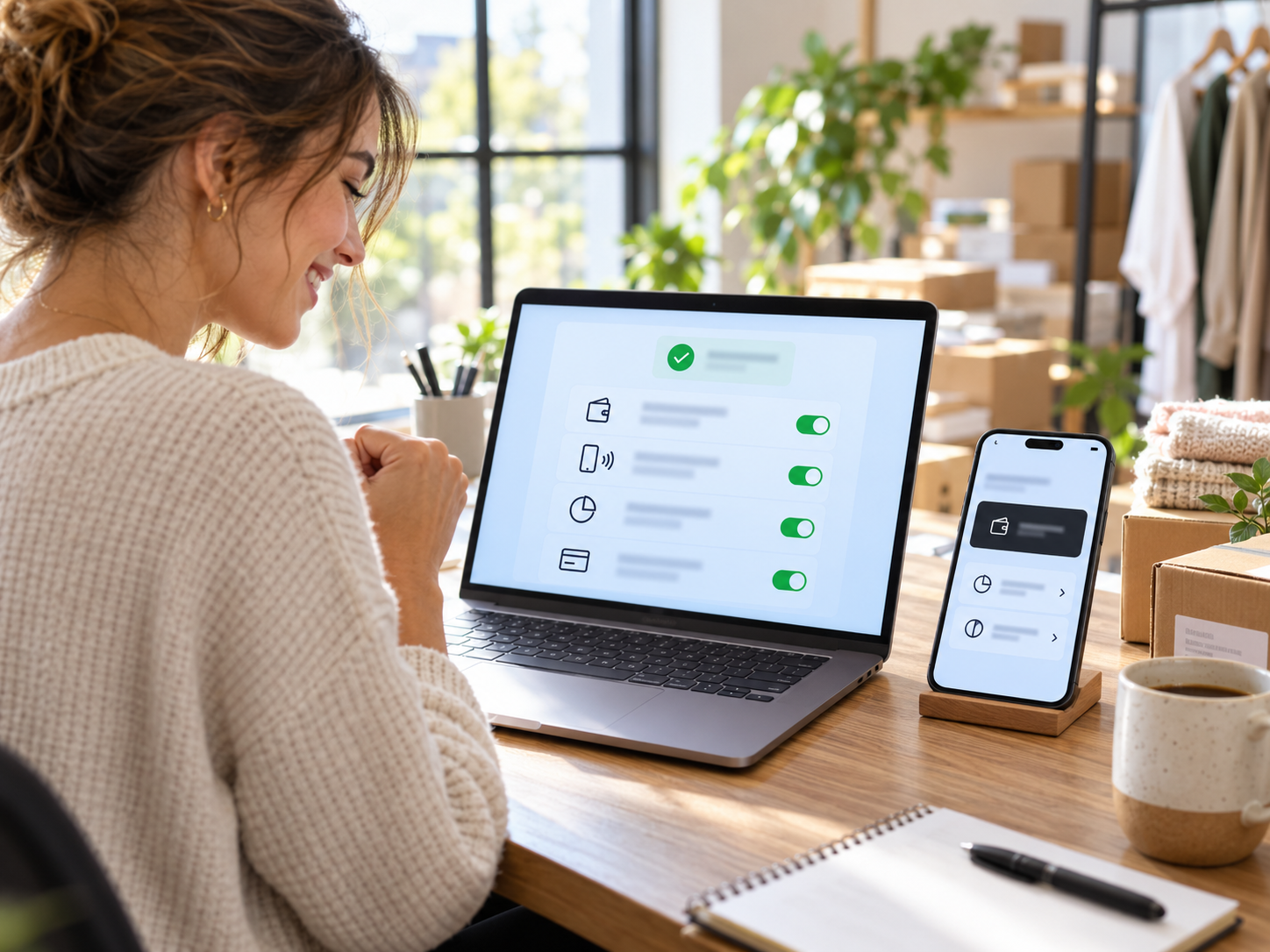
Instant Online Merchant Account with Klarna, Apple Pay & Google Pay Included
Most merchant accounts make you wait. You submit an application, wait days for underwriting, then discover that Klarna needs one contract, Apple Pay needs another setup, and Google Pay needs a third. Coastal Pay removes that stack of separate steps. You apply once, you are approved in about two minutes for most standard-risk businesses, and you switch on your payment methods from one dashboard.

Flat 2.5% + $0.15 Payment Processing – No Gateway Fee, No Hidden Costs, No Surprises
Most payment processors quote a rate. Then they add a gateway fee. Then a statement fee. Then a batch fee. Then a PCI fee. By the time the monthly statement arrives, the effective rate is 0.5% to 1% higher than the number you saw on the pricing page. Coastal Pay works differently. One flat rate – 2.5% + $0.15 per transaction. Zero monthly gateway fee. Zero statement fee. Zero batch fee. Zero setup fee. The number you see is the number you pay. Every month. Every transaction. Every channel.
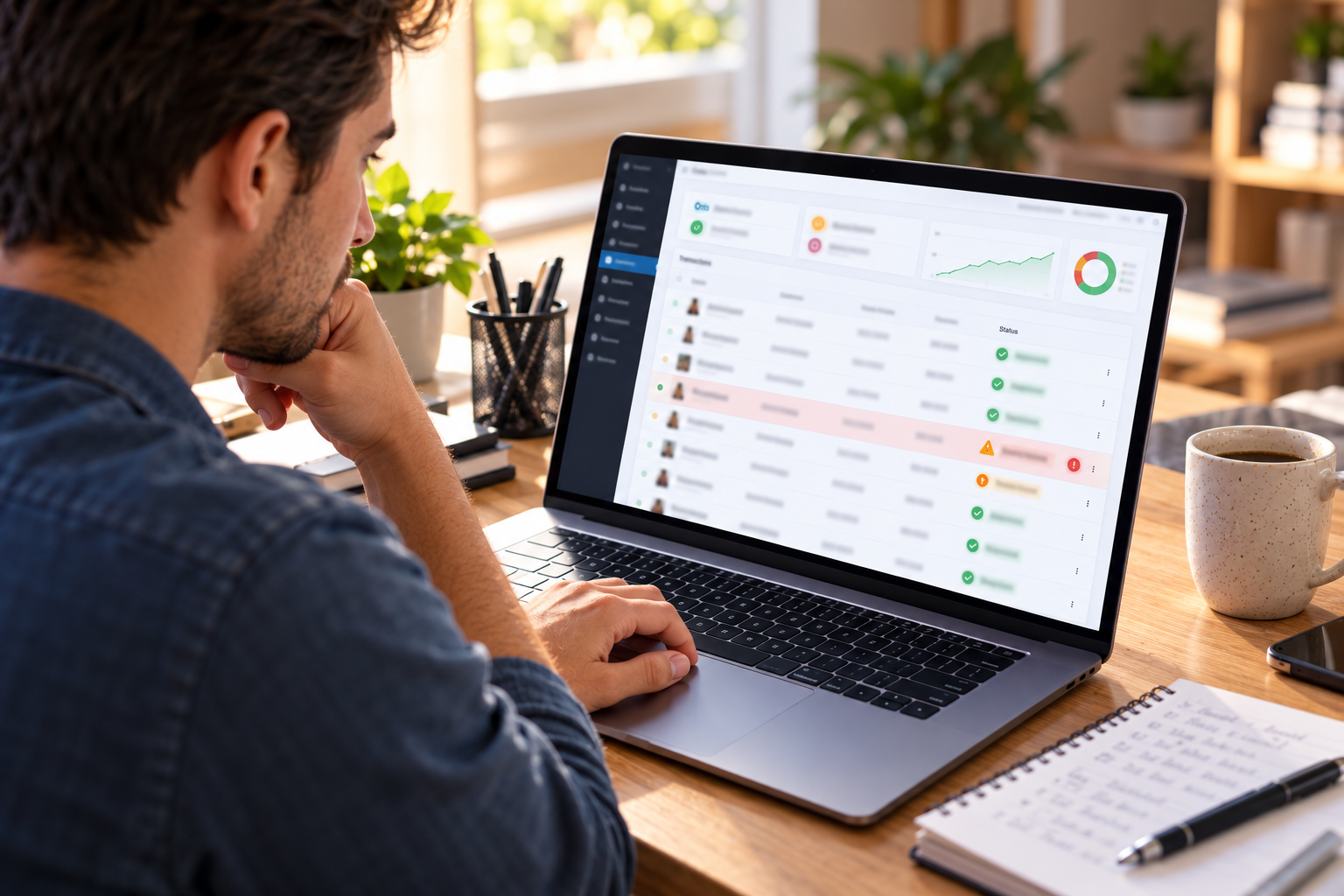
WooCommerce Chargeback and Fraud Prevention: 8 Strategies to Protect Your Store With Coastal Pay
WooCommerce chargebacks cost more than the disputed transaction amount. They cost the chargeback fee ($15 to $35 per dispute), the product or service already delivered to the customer, the time to gather and submit dispute evidence, and – if your dispute rate stays elevated – potential rate surcharges and processor account risk that affect every future transaction. The most effective chargeback prevention happens at the payment processing level, before a dispute is ever filed. This guide covers eight specific, actionable strategies to reduce WooCommerce fraud and chargebacks using Coastal Pay’s fraud tools, verification features, and account management support.
Set Up WooCommerce Fraud Prevention With Coastal Pay | Call 888-266-1715