


Coastal Pay | Payment Processor, Payment Gateway & 2000+ Software Integrations

How to Add ACH Bank Payments to WooCommerce With Coastal Pay (B2B Cost Savings Guide 2026)

For WooCommerce stores that sell to business customers - B2B supply, wholesale, professional services, software licenses - ACH bank debit is the single highest-ROI payment method addition available. The cost difference between card processing and ACH processing at typical B2B WooCommerce order sizes is not incremental. At $2,000 per order, ACH at Coastal Pay's flat per-item rate costs approximately $1.50. The same order by card at 2.5% + $0.15 costs $50.15. That $48.65 per-order difference adds up to real annual savings that compound with every B2B customer who adopts ACH payment. This guide covers exactly how to add ACH to your WooCommerce checkout using Coastal Pay, who benefits most, and how to encourage adoption.

Share

Let’s Define Why ACH Is the Right Default for B2B WooCommerce Orders

ACH (Automated Clearing House) bank debit is the U.S. bank transfer standard. When a customer pays via ACH on WooCommerce, they authorize a direct debit from their business checking account. The payment routes through the Federal Reserve’s ACH network or the Electronic Payments Network (EPN) and settles to the merchant’s bank account within 1 to 3 business days. For B2B transactions, ACH is not a niche alternative payment method – it is the standard corporate payment method for vendor payments, service invoices, and procurement above certain thresholds. Adding ACH to WooCommerce is not about offering an obscure option; it is about meeting business buyers where they already prefer to pay.

Why ACH Is Structurally Better Than Card for Large WooCommerce B2B Orders

  • Cost: ACH flat per-item rate is the same regardless of order amount. A $10,000 WooCommerce order via ACH costs $1.50. Via card at 2.5%: $250.15. The percentage-based card fee creates a cost that scales with order size; ACH does not.
  • No card expiry: A bank account does not expire. A business that sets up ACH payment for their WooCommerce orders today will still be using the same bank account in 3 years. Card-paying customers require ongoing maintenance – new cards expire, companies get new cards when old ones are compromised, and every replacement generates a potential payment failure or update request.
  • No card replacement disruption: When a company’s corporate card is replaced (fraud, expiry, employee departure), ACH payment to WooCommerce is unaffected. The bank account continues to process orders without any update from the customer.
  • Lower fraud risk for large orders: ACH requires bank account authorization with routing and account numbers, which are harder to steal and use fraudulently than card numbers. For WooCommerce B2B stores selling high-value products, ACH reduces large-order fraud risk compared to card-not-present transactions.
  • Corporate preference: Many accounts payable departments in mid-size and enterprise companies prefer ACH for vendor payments because it integrates with their accounting systems and produces a clean bank statement record without corporate card expense categorization complexity.

The WooCommerce ACH Savings Math at B2B Volume

WooCommerce Order SizeCard Cost (2.5% + $0.15)ACH Cost (flat per-item ~$1.50)Savings Per OrderMonthly Savings (30 orders)
$500$12.65~$1.50~$11.15~$334.50
$1,000$25.15~$1.50~$23.65~$709.50
$2,500$62.65~$1.50~$61.15~$1,834.50
$5,000$125.15~$1.50~$123.65~$3,709.50
$10,000$250.15~$1.50~$248.65~$7,459.50

A WooCommerce wholesale store averaging 30 orders/month at $2,500 that achieves 50% ACH adoption: monthly ACH savings approximately $917 – $11,004/year from one payment method addition.

What ACH Payment Looks Like at WooCommerce Checkout

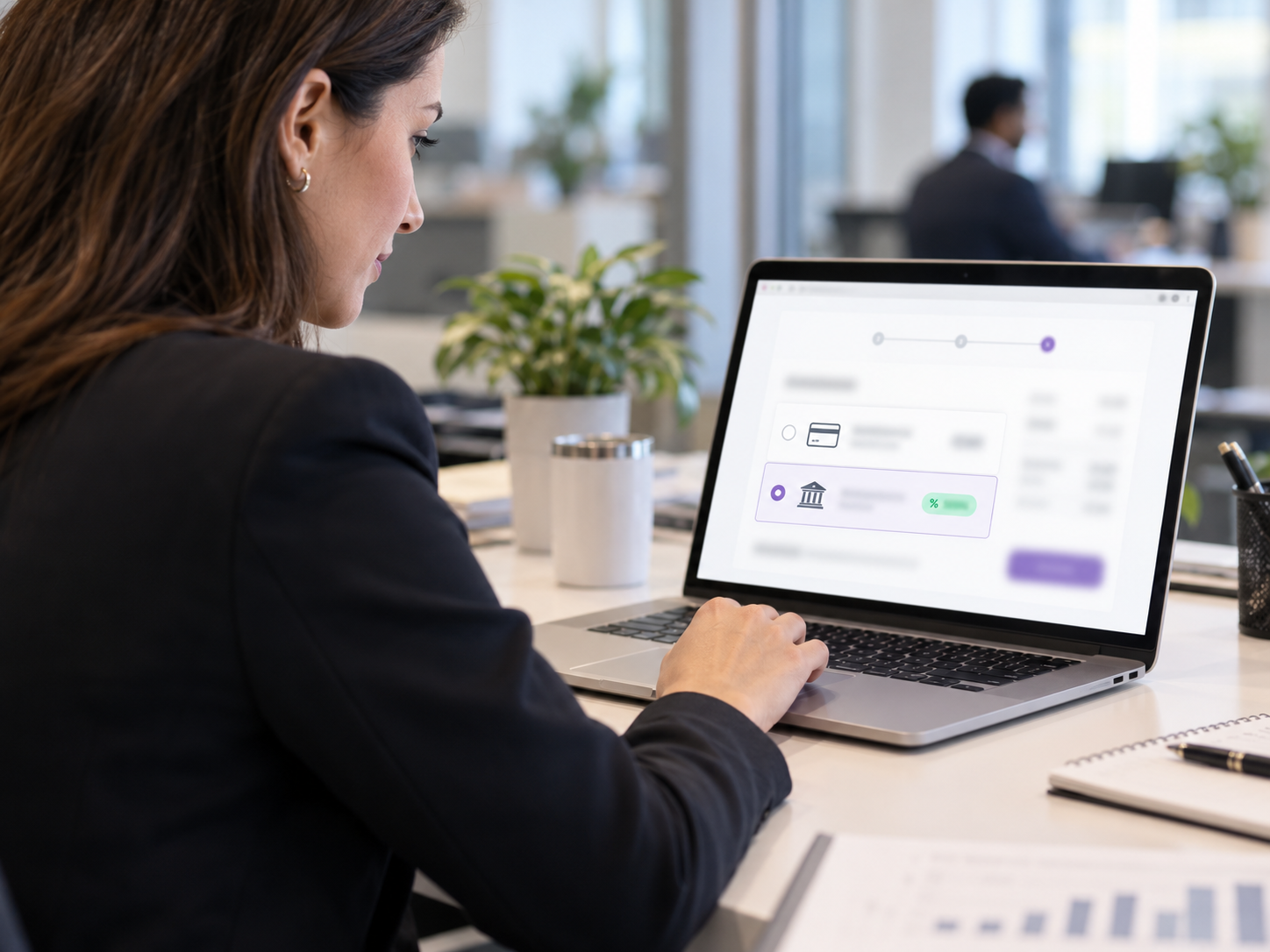
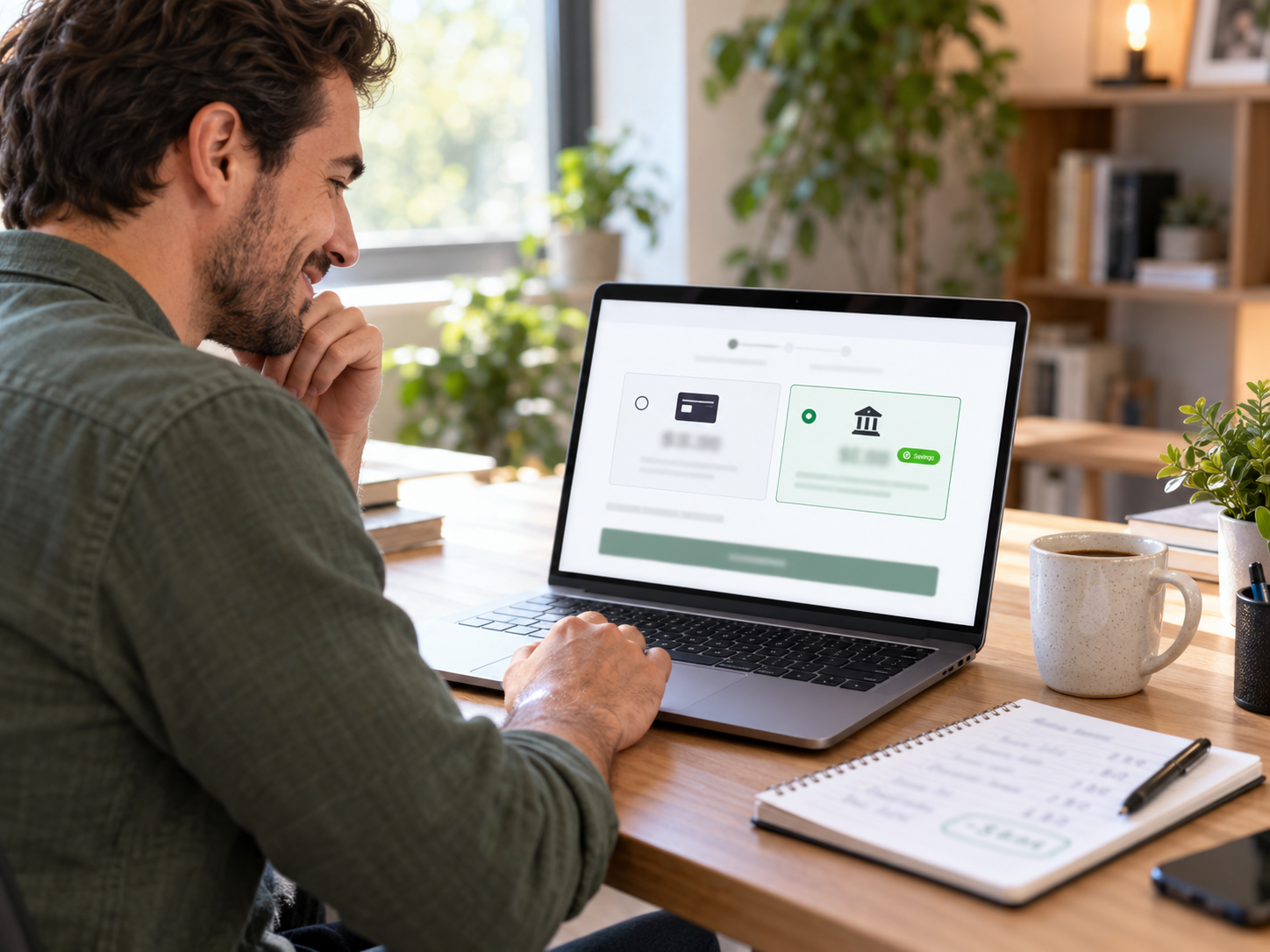
With Coastal Pay’s WooCommerce plugin configured for ACH, the checkout payment section displays an “ACH / Bank Transfer” option alongside the standard card and wallet methods. For a WooCommerce B2B store using dual pricing, the ACH option can be labeled with the discounted price: “Pay by bank transfer – $X (save 2.5%).” This dual-price display is the most effective way to drive ACH adoption because customers see a clear financial incentive before selecting their payment method.

The Customer ACH Checkout Experience on WooCommerce

  1. Customer reaches WooCommerce checkout with B2B order in cart
  2. Payment methods displayed: Card, Apple Pay/Google Pay, ACH Bank Transfer (with savings badge if dual pricing is enabled)
  3. Customer selects “ACH Bank Transfer”
  4. Coastal Pay’s hosted ACH enrollment form opens – customer enters: bank routing number, bank account number, account type (checking/savings), and account holder name
  5. NACHA authorization language is displayed: “By clicking confirm, you authorize [Business Name] to debit your bank account for $[amount].”
  6. Customer confirms. WooCommerce order is created immediately with “Payment Pending” status (ACH takes 1 to 3 days to clear)
  7. Customer receives WooCommerce order confirmation email
  8. ACH debit processes through the bank network over 1 to 3 business days
  9. When ACH clears, WooCommerce order status updates to “Processing” and fulfillment can begin

For WooCommerce stores that fulfill before ACH clearing (common for digital products or established B2B relationships), the order can be fulfilled immediately after placement with ACH confirmation received. For stores that fulfill after payment confirmation (physical products), configure WooCommerce to hold fulfillment until the order status updates to “Processing” after ACH clearing.

Step-by-Step: Adding ACH to WooCommerce With Coastal Pay

Step 1: Confirm ACH Is Enabled on Your Coastal Pay Account

Apply at coastalpay.com/contact-us and note that you want ACH bank transfer enabled for your WooCommerce store. Or call 888-266-1715 to confirm ACH is active on an existing Coastal Pay account. ACH is included in standard Coastal Pay merchant accounts – confirmation takes less than 5 minutes.

Step 2: Install or Update the Coastal Pay WooCommerce Plugin

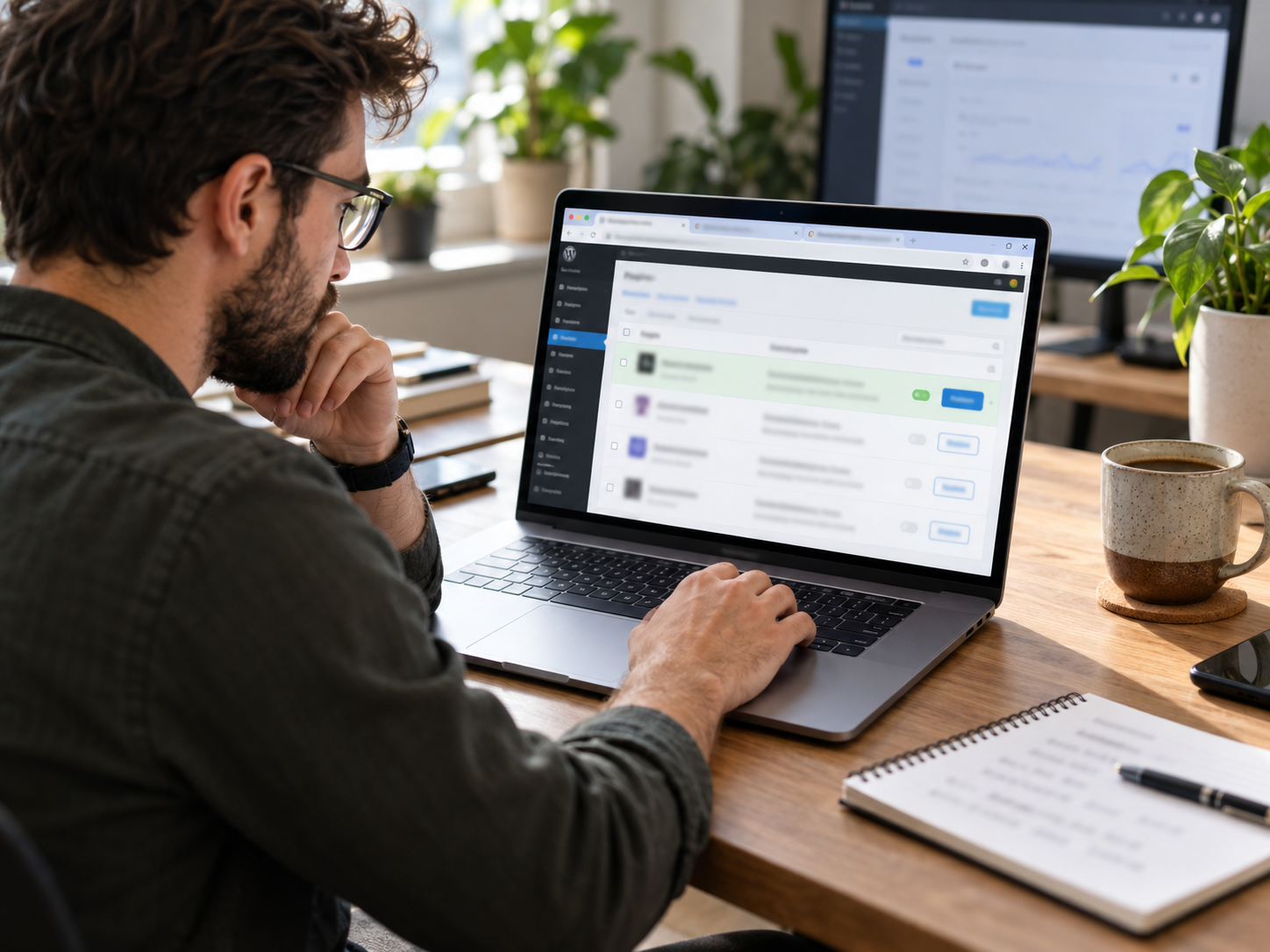
Navigate to WordPress admin – Plugins. If you already have the Coastal Pay plugin installed, check for updates and ensure you are running the current version (ACH support requires a current plugin version). If installing for the first time, search “Coastal Pay” in Plugins – Add New and install and activate.

Step 3: Enable ACH in Plugin Settings

Go to WooCommerce – Settings – Payments – Coastal Pay – Manage. In the payment methods section, find the ACH / Bank Transfer toggle. Enable it. Configure the ACH display settings:

  • Display label: “Pay by bank transfer (ACH)” is the clearest label for B2B customers. If using dual pricing, the label can include the price: “Bank transfer – $X (save 2.5%)”
  • Minimum order amount: Recommended $100 to $200 for B2B stores – ACH provides the largest cost savings on orders above $200, and displaying it on $15 orders creates unnecessary complexity
  • Authorization text: Coastal Pay provides compliant NACHA authorization language – use the default or call 888-266-1715 to customize for your specific business name and order types

Step 4: Configure WooCommerce Order Status for ACH

ACH transactions create WooCommerce orders immediately but take 1 to 3 business days to clear the banking network. Configure WooCommerce order status handling for ACH:

  • Initial ACH order status: “On hold” (payment authorized but not yet cleared) – prevents automatic fulfillment before ACH confirmation
  • ACH cleared status update: Coastal Pay delivers a webhook to WooCommerce when the ACH clears – configure WooCommerce to move the order to “Processing” on receipt of this webhook
  • For digital products only (where immediate delivery is acceptable): configure to “Processing” immediately and send the customer the order digitally before ACH clearing, accepting the small risk of an ACH return

Step 5: Test the ACH Checkout Flow

In Coastal Pay plugin Test mode: add a product above your ACH minimum to the WooCommerce cart. Navigate to checkout. Select ACH. Enter Coastal Pay test routing and account numbers (provided in the Gateway dashboard). Submit. Confirm the WooCommerce order is created with “On hold” status. Confirm the order appears in the Coastal Pay dashboard. Simulate an ACH clearance webhook in test mode and confirm the WooCommerce order updates to “Processing.”

Step 6: Launch and Encourage ACH Adoption

After switching to live mode, actively drive ACH adoption among your B2B WooCommerce customers:

  • Email your existing B2B customers announcing ACH is now available at checkout – include the savings: “Pay by bank transfer and save 2.5% on your next order”
  • Add an ACH savings badge to your WooCommerce product pages for qualifying B2B products
  • For high-volume B2B accounts, consider enrolling them in Coastal Pay’s ACH recurring billing for their standard monthly orders (contact 888-266-1715 to configure)
  • Include ACH as the preferred payment recommendation in your WooCommerce checkout sidebar or order notes for orders above $500

ACH Return Handling on WooCommerce

ACH returns are the ACH equivalent of card declines – the bank rejects the debit request. ACH returns take 3 to 5 business days to report to Coastal Pay (compared to immediate notification for card declines). For WooCommerce stores, ACH return handling requires specific order management configuration:

  • When Coastal Pay receives an ACH return, a webhook is delivered to your WooCommerce store notifying it of the return
  • WooCommerce updates the order status from “On hold” or “Processing” to “Failed” or “Pending payment”
  • An automated customer notification should be sent (configure in WooCommerce order status email settings) asking the customer to complete payment via card or a new ACH authorization
  • For customers who have already received fulfilled orders (digital products), the ACH return creates a receivable that requires manual follow-up

ACH return rate for B2B WooCommerce transactions is significantly lower than card decline rates because business bank accounts rarely have insufficient funds for routine business-to-business payments. The most common ACH return reason for B2B WooCommerce is incorrect account information entered at checkout – which is preventable by encouraging customers to verify their routing and account numbers before submitting.

Contact 888-266-1715 to configure ACH return handling, webhook delivery, and notification workflows for your specific WooCommerce store configuration.

Explore ACH and all Coastal Pay payment methods for WooCommerce, dual pricing with ACH for WooCommerce, and transparent flat-rate pricing.

Add ACH Bank Payments to Your WooCommerce Store

Call for ACH setup: 888-266-1715

Frequently Asked Questions

How do I add ACH payments to WooCommerce?
Install the Coastal Pay WooCommerce plugin, enable ACH in the payment methods settings, set a minimum order amount, and configure WooCommerce order status for ACH’s 1 to 3 day clearing timeline. ACH appears at checkout alongside card and wallet options. Contact 888-266-1715 for ACH setup assistance.
How much does ACH cost versus card payment on WooCommerce?
Coastal Pay’s ACH is flat per-item (~$1.50). Card is 2.5% + $0.15. At $1,000: ACH $1.50 vs card $25.15. At $5,000: ACH $1.50 vs card $125.15. A WooCommerce B2B store at $100,000/month that routes 40% to ACH saves approximately $38,000/year compared to card-only processing.
Is ACH payment safe for WooCommerce customers?
Yes. ACH processes through Coastal Pay’s NACHA-compliant infrastructure. Bank account details are entered on Coastal Pay’s secure hosted form and never touch your WordPress server. NACHA authorization is collected explicitly before debit. ACH fraud rates for B2B transactions are lower than card-not-present transactions because bank account credentials are harder to steal and misuse than card numbers.

How to Switch From Stripe to Coastal Pay on WooCommerce Without Downtime (Complete Step-by-Step Guide)

If your WooCommerce store runs on Stripe and processes $30,000 or more per month, you are paying more than you need to. Stripe charges 2.9% + $0.30 per online transaction. Coastal Pay charges a flat 2.5% + $0.15 per transaction with $0 monthly gateway fee. At $50,000/month, that difference is $4,200/year. At $100,000/month it is $8,400/year. The switch takes 30 to 60 minutes, requires no store rebuild, no developer involvement for standard WooCommerce setups, and zero checkout downtime when done with the parallel-run method described in this guide. Everything about your WooCommerce store – your theme, products, cart, customer accounts, and SEO – remains completely unchanged.
WooCommerce Dual Pricing With Coastal Pay: Reduce Card Processing Fees to Near Zero (2026 Guide)

Of all the strategies available to reduce WooCommerce processing costs, dual pricing has the highest ceiling. While switching from Stripe to Coastal Pay saves $4,200 to $8,400/year depending on volume, implementing dual pricing on top of the rate switch can save $10,000 to $50,000+/year depending on volume and ACH adoption rate. This is not a marginal improvement – it is a cost structure transformation that changes the fundamental economics of card acceptance for a WooCommerce store. This guide covers exactly how dual pricing works on WooCommerce, why it is legal in all 50 states, how Coastal Pay deploys it at the gateway level, and what the real annual savings look like at three WooCommerce store sizes.

WooCommerce Recurring Billing and Subscription Payments With Coastal Pay (2026 Complete Guide)

WooCommerce subscription stores have payment gateway requirements that go far beyond what a standard one-time transaction gateway provides. Card-on-file tokenization, configurable billing cycles, automated failed payment retry, card updater services, and ACH recurring billing are all critical infrastructure for a subscription WooCommerce store – because without them, involuntary churn from payment failures silently erodes MRR every month. This guide covers how Coastal Pay powers WooCommerce recurring billing at flat 2.5% + $0.15 with no separate subscription billing platform fee, and how the right dunning and card updater configuration can recover tens of thousands in annual MRR that would otherwise be lost to involuntary churn.

How to Add Klarna and Afterpay to Your WooCommerce Store With Coastal Pay (BNPL 2026 Guide)

Buy-now-pay-later options at WooCommerce checkout are one of the most well-documented average order value and conversion rate improvements available to online stores. A customer who pauses at a $180 checkout often completes the purchase when Klarna shows “4 payments of $45.” The same customer with a $350 cart who might have removed an item may keep both items when Afterpay shows “4 payments of $87.50.” The merchant receives the full amount immediately. The BNPL provider bears the customer’s non-payment risk. The merchant’s only obligation: offer the option at checkout. This guide covers how to add both Klarna and Afterpay to your WooCommerce store through Coastal Pay’s single plugin – no separate BNPL agreements, no extra monthly fees, and no developer required.

Search